

Inbox
Inbox is a personal queue of task-related activity that Anakin has recorded for you. It groups activity by task so several updates for the same task appear as one row with an additional-activity count.
Selecting a task row opens its task details. If the Inbox item refers to a comment, the task view uses that comment context when opening the detail panel.
An Automation run item does not navigate away: it opens the Automation's full details in a right-side drawer, and the address bar stays on the Inbox. The run record stays in the history list until you open it. Closing the drawer returns you to the Inbox list so you can continue with the next item. On a narrow window it stays a full-screen detail with a back action.
Conversation notifications such as mentions open in place too: the Task and its conversation drawer overlay the Inbox, with fullscreen and restore available. Closing with X or the browser back button returns to the Inbox and keeps the Space filter. The desktop app behaves the same.
When a Space sets Triage responsibility to Notify, selected people also receive an Inbox item of type Triage responsibility, labeled This task needs your triage. The Triage inbox is a Space queue; Inbox is personal. Snooze in the Triage inbox hides the task in that queue. Inbox Later hides your notification. They are not the same action.
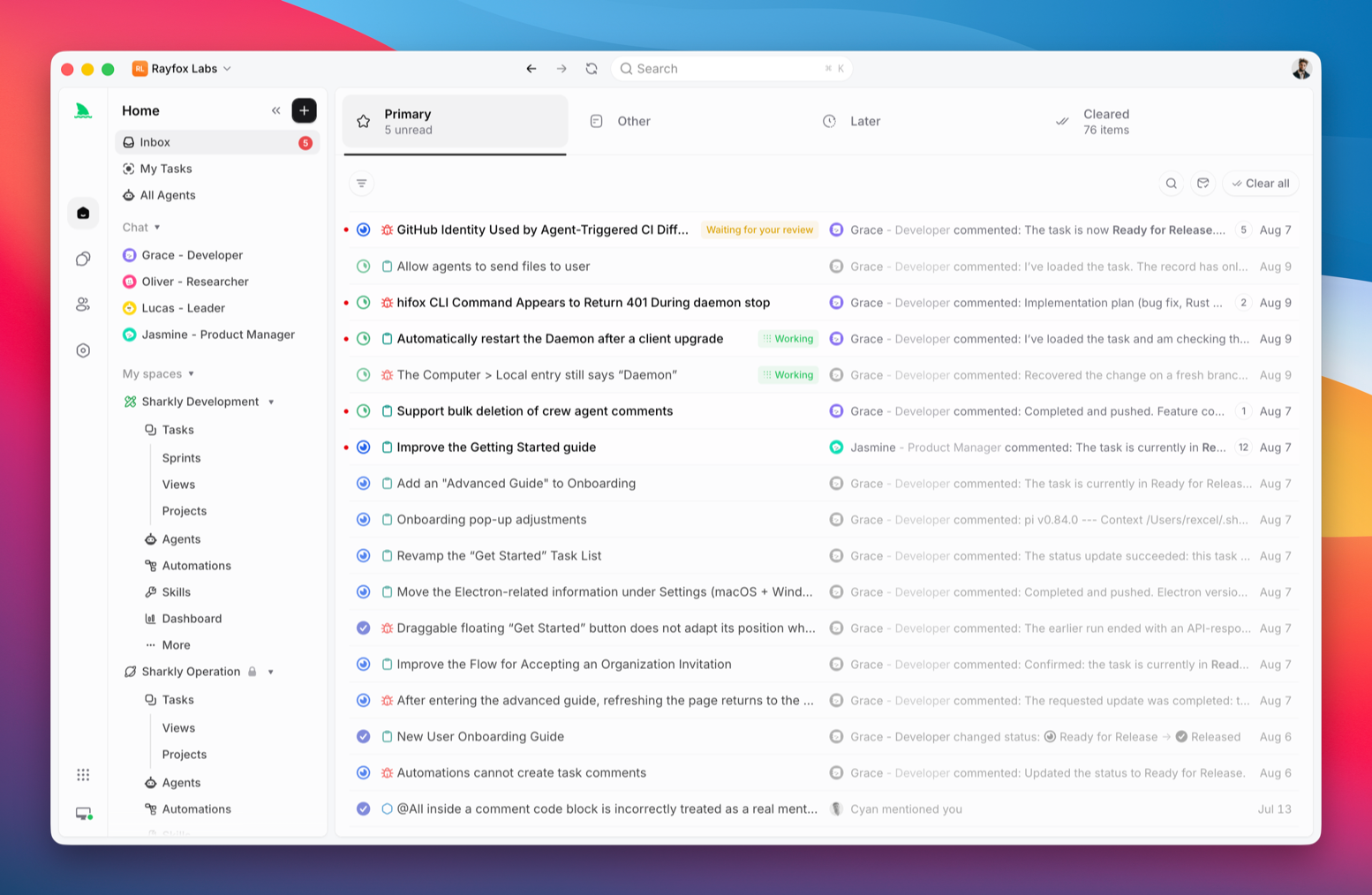
Inbox sections
Inbox is a single tab. Below it, All / Primary / Other segments switch the view and each shows its own unread count. The Inbox remembers your last segment pick: if it was Primary, the next visit opens straight on Primary; any other pick (All or Other) reopens on All. Reading an item in Primary no longer switches you to Other.
Agent messages and hand-offs inside a task conversation — Needs your reply, Needs review — no longer enter the Inbox. They surface in the main sidebar's Task Chats module instead, and the desktop banner and Slack notification for the conversation starter still go out. See Chat with an Agent.
A task appears in only one active section: Primary, Other, or Later. Older cleared activity for the same task can remain in Cleared. If active items match more than one Primary signal, Anakin places the row by the highest-priority signal while showing the most recent active event in the row.
When someone mentions a real person in task quick action, the conversation with the assigned Agent, or another task Agent chat, the mentioned person sees a Primary Inbox reminder that can open the relevant task or chat context. Muting Slack does not remove the Inbox record.
Primary and Other show unread task-group counts. Later is excluded from the active unread count while its items remain snoozed. The unread dot on a row is red for Primary and blue for Other, and it fades when read instead of disappearing.
Read and unread state
Read state is task-level within the current Inbox state:
- Opening an unread task row marks all matching Inbox activity for that task as read.
- Mark as read and Mark as unread apply to the whole task group.
- Mark all as read affects only the section currently open, including Cleared when that section is open.
- Reading an Inbox item does not change the task, comments, or activity records.
If any active item in a task group is unread, the row remains unread even when its highest-priority item was already read.
Snooze a task
Use Snooze on a Primary or Other row to move the task to Later. Snooze applies to all current active Inbox activity for that task.
You can choose a preset such as 1 hour, tomorrow, next week, or next month. You can also enter a recognized date or time, or choose a date from the calendar.
When the snooze time is no longer in the future, the next Inbox refresh derives the task back into Primary or Other. A new non-snoozed activity can bring it back earlier. Later does not currently provide a separate manual unsnooze action; you can wait for the return time or clear the row.
Clear and restore
Use Clear to move all current active Inbox activity for a task to Cleared. The task then appears as one Cleared row with its activity count.
Use Clear all to clear the section currently open. It applies to Primary, Other, or Later only and does not change the other sections. The action is disabled in Cleared.
When a filter is active, Clear all and Mark all as read apply only to the notifications matching the current filter; everything else stays as it is.
Use Unclear on a Cleared row to return all cleared Inbox activity for that task to the active list. Anakin derives its destination from the current activity, so it can return to Primary, Other, or Later.
Clearing is not deletion. It does not remove the task, comments, attachments, or task activity. New qualifying activity can create active Inbox activity for the same task later.
Inbox remains the complete record. Slack is an optional outbound channel: mute a notification group in Slack without losing the matching Inbox item. See Slack notifications.
If a comment @mentions you, Slack sends You were mentioned and does not also send New comment for the same comment. Inbox still records the activity.
Where a Slack notification takes you depends on its kind: conversation notifications (chat replies, @ mentions inside a conversation, and a conversation transferred to you) open that conversation directly, while every other notification still opens the task in Inbox and marks that task's notifications as read, so you do not have to clear them one by one. Clicking a conversation notification on the desktop likewise opens the conversation in place and marks the matching Inbox item as read. Slack links that point at a specific run still open that run.
Search and Space filters
Search matches task titles and comment bodies within the current section. Space filters can include selected Spaces or exclude them for the active Inbox list used by Primary, Other, and Later. Cleared is loaded separately and is not narrowed by the current Space filter.
Process an Inbox item
- Open the task row and review the latest event and task context.
- Reply in the task when information or a decision is required.
- Mark the row unread if you need to preserve it as an active reading cue.
- Snooze it when the work should return at a specific time.
- Clear it when no further Inbox attention is needed.
Review an Agent result
When a Task is waiting for review, successfully sending the “Reviewed, no issues” quick reply clears the pending-review marker automatically. The cleared state remains consistent in task lists, Task details, and when you reopen the Task. This happens only after the message is sent successfully and only when the Task was actually waiting for review. Clearing the marker does not change the Task's lifecycle status or mark the Task as completed.